
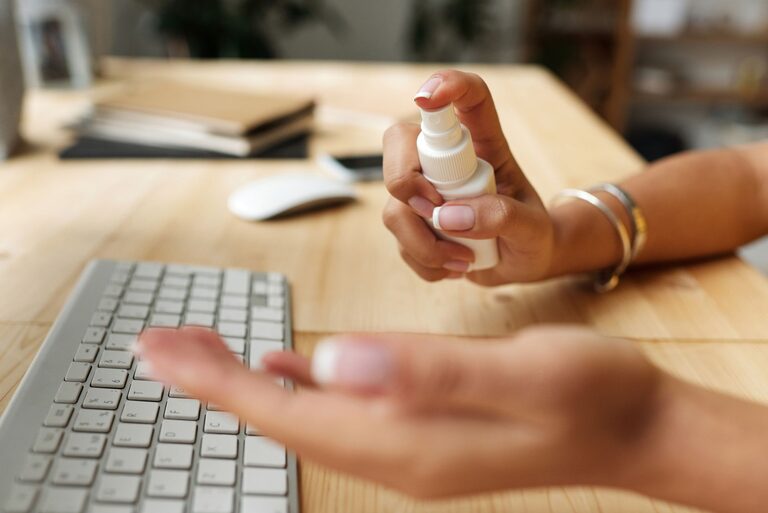

Why regular cleaning matters
Phones and keyboards collect dust, skin oils, crumbs and other everyday grime. Because we use them often, these surfaces can become noticeably dirty even when they look clean at first glance.
Regular, gentle cleaning helps keep your devices looking better and working properly. The key is to remove dirt without allowing moisture to reach screens, ports, switches or other sensitive components.
Before cleaning any device, check the manufacturer’s care instructions. Some finishes, screen coatings and key materials require specific products or methods.
What you will need
Gather your supplies before you begin:
– A clean, soft microfibre cloth
– A second dry microfibre cloth
– Cotton swabs for small areas
– A soft, clean brush
– A small amount of mild soap
– A suitable electronics-safe cleaning wipe
– Compressed air, if recommended for your keyboard
– A clean, dry workspace
Avoid rough cloths, paper towels, abrasive powders and household glass cleaners. These can scratch surfaces or damage protective coatings.
How to clean your phone safely
1. Turn off and unplug the phone
Power off your phone before cleaning it. Disconnect charging cables, headphones and other accessories. If the phone has a removable case, take it off so you can clean both the device and the case separately.
If the phone has recently been exposed to moisture, do not connect it to a charger until it is completely dry. Never clean a phone while it is charging.
2. Remove loose dust
Use a dry microfibre cloth to gently wipe away dust, fingerprints and light marks. Move the cloth across the screen and back of the phone without pressing hard.
For speaker grilles, charging ports and other openings, use a soft, dry brush to loosen visible dust. Keep the brush gentle, and do not force dust further inside.
Avoid inserting pins, paper clips or other sharp objects into ports. They can damage internal contacts and may leave behind small pieces of material.
3. Clean the screen and body
For stubborn marks, lightly dampen a corner of the microfibre cloth with water. The cloth should be damp, not wet. Never spray liquid directly onto the phone.
Wipe the screen, sides and back with gentle strokes. Use a dry section of the cloth afterwards to remove any remaining moisture.
If the manufacturer permits it, you can use an electronics-safe cleaning wipe or a suitable alcohol-based wipe. Do not assume that every disinfecting product is safe for every phone. Check the device instructions first, and avoid products containing bleach, ammonia, harsh solvents or abrasive ingredients.
Do not apply liquid around buttons, speakers, microphones, cameras, SIM trays or ports. Take extra care around the edges of the screen, where moisture can seep into small gaps.
4. Clean the phone case
Phone cases often hold more dirt than the phone itself. The cleaning method depends on the case material.
For silicone, plastic and similar cases, wipe the surface with a cloth dampened with mild soapy water. Rinse the cloth well, wipe away soap residue, and dry the case completely before putting it back on.
Leather and fabric cases may need special care. Follow the manufacturer’s instructions, as water or general-purpose cleaners can stain or damage them.
Make sure both the phone and case are fully dry before reassembling them. Moisture trapped between the case and phone can cause marks or affect the finish over time.
How to clean a keyboard safely
Keyboards come in several designs, so the safest method depends on whether you have a laptop keyboard, a standard desktop keyboard or a mechanical keyboard.
1. Disconnect the keyboard
Turn off and unplug a desktop keyboard before cleaning. For a wireless model, switch it off and remove the batteries if practical.
Shut down a laptop and disconnect its charger. Keep the laptop closed or positioned so that loose dust does not fall into other openings.
2. Remove loose debris
Turn a removable keyboard upside down and gently shake it over a clear workspace. Do not hit or sharply tap the keyboard, as this can damage switches and other parts.
Use a soft brush to loosen crumbs and dust between the keys. A can of compressed air may also help, but use short bursts and hold the can according to its instructions. Keep the can upright if required, and avoid spraying liquid propellant onto the keyboard.
For laptops, do not shake the entire computer aggressively. Brush around the keys carefully and use only a cleaning method approved by the manufacturer.
3. Wipe the keys and surfaces
Dampen a microfibre cloth slightly with water or an electronics-safe cleaning solution. Do not spray anything directly onto the keyboard.
Wipe the tops of the keys, the area around them and the keyboard’s outer surface. For narrow gaps, use a cotton swab that is only slightly damp. Follow with a dry cloth.
Avoid allowing moisture to pool between keys. Liquid can reach the keyboard’s internal circuitry, especially on laptops.
4. Decide whether to remove keycaps
Some mechanical and desktop keyboards have removable keycaps. If the manufacturer allows it, you can remove them carefully using a keycap puller. Take a photo first so you know where each key belongs.
Wash plastic keycaps in mild soapy water, then rinse them thoroughly and allow them to air-dry completely. Drying may take several hours. Never reinstall damp keycaps.
Do not remove laptop keycaps unless the manufacturer specifically provides instructions. Their clips can break easily and may be difficult to replace.
What to avoid
Keep these precautions in mind:
– Never pour or spray liquid directly onto a device.
– Do not clean electronics while they are powered on or charging.
– Avoid bleach, ammonia, abrasive cleaners and strong solvents.
– Do not use sharp tools in ports or between keys.
– Do not use a soaking-wet cloth.
– Avoid excessive pressure on screens and delicate keys.
– Do not use a hairdryer or heat source to speed up drying.
– Do not reconnect a device until all surfaces are completely dry.
A simple cleaning routine
A quick wipe once or twice a week can prevent heavy buildup. Clean your phone more often if you use it while eating, outdoors or in dusty areas. Keyboards may need attention when crumbs become visible, keys feel sticky or dust gathers between them.
Keep a microfibre cloth near your desk and clean your hands before using devices after applying lotions, eating or working with dusty materials. Small habits can reduce the amount of cleaning needed.
With gentle tools, minimal moisture and the right technique, you can keep your phone and keyboard clean without putting their screens, coatings or internal components at unnecessary risk.